How to download HorizonVPN on iPhone in Russia
Change your Apple Account country safely, install the official HorizonVPN app from Russia, switch the App Store back, and fix common country-change errors.
VPN apps may not appear in every App Store country. This guide uses Russia as the practical example and explains how to use Apple's official Country/Region setting, download the genuine HorizonVPN app, and then return your Apple Account to the Russian storefront.
Use only accurate account, payment, and billing information that you are entitled to use. App availability, Apple Account requirements, and local rules can change. This guide does not recommend false addresses, purchased accounts, or bypassing Apple's account checks.
What changing your Apple Account country does
The country attached to Media & Purchases controls which App Store catalog your Apple Account sees. It is separate from your device language, iPhone region format, GPS location, SIM country, public IP address, and HorizonVPN server location.
- It changes the App Store catalog, local prices, accepted payment methods, and availability shown to your Apple Account
- It does not change your physical location or make the iPhone appear to be in another country
- It does not connect HorizonVPN; the VPN starts only after the app is installed and you approve the VPN configuration
Before you start: Apple's country-change requirements
Apple requires account activity to be settled before a country change. Check every item below before you begin; otherwise Country/Region may be unavailable or the final confirmation may fail.
- Spend any remaining Apple Account balance; even a small unused balance can block the change
- Cancel subscriptions that prevent a country change and wait until the current subscription period ends
- Wait for pre-orders, film rentals, Season Passes, pending refunds, and other unfinished store activity to complete
- Leave Family Sharing if Apple says the family group prevents the change
- Prepare a valid payment method and billing address for the new country if Apple requests them
- Download any apps, music, films, TV programmes, or books you may need because some content differs between storefronts
HorizonVPN is free to download, but Apple may still request a valid payment method or billing information when you change the Apple Account country.
Russia example: change the App Store country
- 1Open Settings on the iPhone or iPad
- 2Tap your name at the top of Settings
- 3Tap Media & Purchases and sign in to your Apple Account if requested
- 4Tap Country/Region
- 5Choose the option to change your country or region, then select United States, where the official HorizonVPN listing is confirmed
- 6Tap Continue, review Apple's Terms and Conditions, and tap Agree
- 7Enter a valid payment method, billing address, and any other information Apple requests for that country
- 8Wait for the App Store country change to finish before opening the HorizonVPN listing
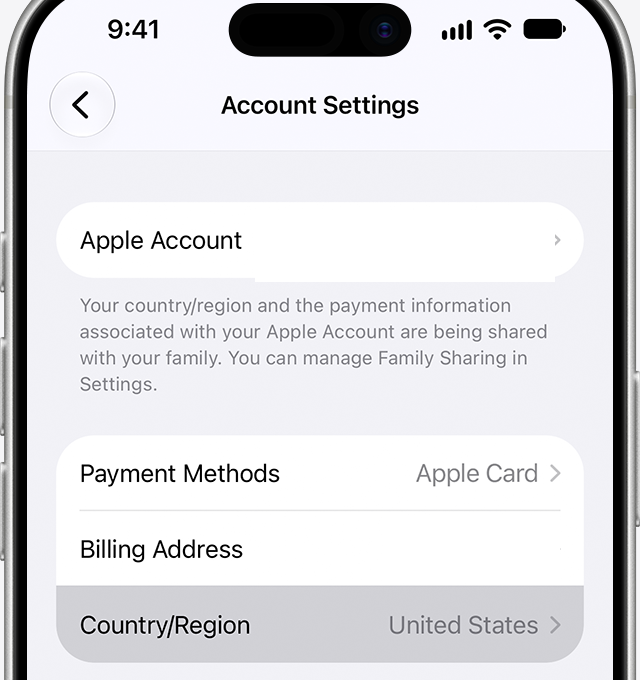
Apple can change the wording or order of these controls. Compare your screen with Apple's current Country/Region instructions if a label looks different.
Install and verify the official HorizonVPN app
- 1Open HorizonVPN on the official App Store
- 2Confirm the app name is HorizonVPN and the developer is Horizon Trading Solutions Ltd
- 3Tap Get and complete Apple's normal download confirmation
- 4Wait until the app is fully installed, then open it once before changing the storefront back
- 5Sign in or use the access option currently offered by the app, then approve Apple's request to add a VPN configuration
Do not install a re-signed IPA, configuration profile, or package from a forum, file-sharing site, social channel, or unknown seller. Do not sign in to an Apple Account supplied by another person. These shortcuts can expose your Apple credentials or install modified software.
Change the App Store country back to Russia
- 1Make sure HorizonVPN is installed and opens successfully
- 2Return to Settings, tap your name, then tap Media & Purchases
- 3Open Country/Region and choose the option to change it again
- 4Select Russia, accept the current terms, and provide the valid information Apple requests
- 5Open HorizonVPN after the change and confirm the app is still present and can start
Changing the Apple Account country back does not automatically remove an app already installed on the device. Keep HorizonVPN installed: future updates or re-downloads can depend on whether the app is available in the storefront currently attached to your account.
Important billing note for Apple Accounts in Russia
Apple says that from April 1, 2026, mobile-phone billing is no longer available for Apple digital purchases in Russia. New App Store purchases, in-app purchases, and subscription renewals may require sufficient Apple Account balance. Read Apple's current billing information for Russia before relying on an App Store subscription.
Downloading the free HorizonVPN app and paying for a subscription are separate actions. Returning to the Russian storefront can affect which Apple payment methods, purchases, and renewals are available.
If Country/Region is unavailable or will not change
- Check that the Apple Account balance is exactly zero
- Confirm every subscription that blocks the change has ended, not only that auto-renewal is turned off
- Wait for pending purchases, pre-orders, rentals, refunds, and store-credit operations to finish
- Check whether the Apple Account is still part of a Family Sharing group
- Make sure the payment method and billing address are valid for the selected country
- Contact Apple Support if a small remaining balance cannot be spent or the account still cannot change country
Use Apple's official Country/Region guide as the source of truth for account requirements. HorizonVPN cannot remove an Apple Account balance, cancel an Apple subscription, change Family Sharing, or approve billing information for Apple.
Using a separate Apple Account for Media & Purchases
A separate Apple Account can avoid repeatedly changing the country of your main account, but it must be an account you created and control with accurate information. Apple advises users who do not want to enter a payment method to wait until they are physically in the new country or region before creating a new Apple Account there.
Never buy, borrow, or share an Apple Account. A seller or previous owner can recover the account, access purchase history, trigger security checks, or lock you out of future app updates.
After HorizonVPN is installed
- 1Open HorizonVPN and sign in with your HorizonVPN account, or use Guest mode when the app offers it
- 2Tap the main connection control and approve the iOS VPN configuration request
- 3Start with Auto or a nearby available location unless you need a specific country
- 4Wait until HorizonVPN shows Connected before opening the service you want to use
- 5Keep the app updated through an official App Store listing whenever updates are available to your account
Common questions
Official links and related guides
- Download HorizonVPN from the official App Store
- Read Apple's guide to changing Apple Account country or region
- Check Apple's billing information for Russia
- Read the HorizonVPN guide for Russia
App Store availability and local rules can change. Follow Apple's current instructions, use HorizonVPN responsibly, and comply with the laws and service terms that apply to you.
Was this article helpful?